
Requirements
Before you begin, make sure you have:
- Revenue Plumber Subscription — Starter or Professional plan required.
- Stripe integration connected first. Stripe serves as the single source of truth for your paying customers. HubSpot data will only display for customers that exist in your Stripe account.
- Admin access in Revenue Plumber to set up integrations.
- Super Admin or Admin permissions in your HubSpot account to authorize the connection.
- HubSpot account (Free, Starter, Professional or Enterprise — all tiers are compatible).
Revenue Plumber uses Stripe as the primary source for identifying your paying customers. When you connect HubSpot, we match and enrich your customer profiles with CRM data. Without Stripe connected, there's no customer base to enrich with HubSpot data.
What You Get
Once connected, the HubSpot integration unlocks the following features:
- Churn Risk Scoring — Get churn probability (0-100%) for each customer based on your HubSpot customer's details and other data sources.
- Churn Reasons — Identify specific reasons why your customer is likely to churn based on HubSpot's and other systems' data.
- 360 Customer View — Get full overview of your customers' details and interactions by connecting all data into one place.
Connect HubSpot to Revenue Plumber
Follow these steps to establish the connection between Revenue Plumber and your HubSpot account.
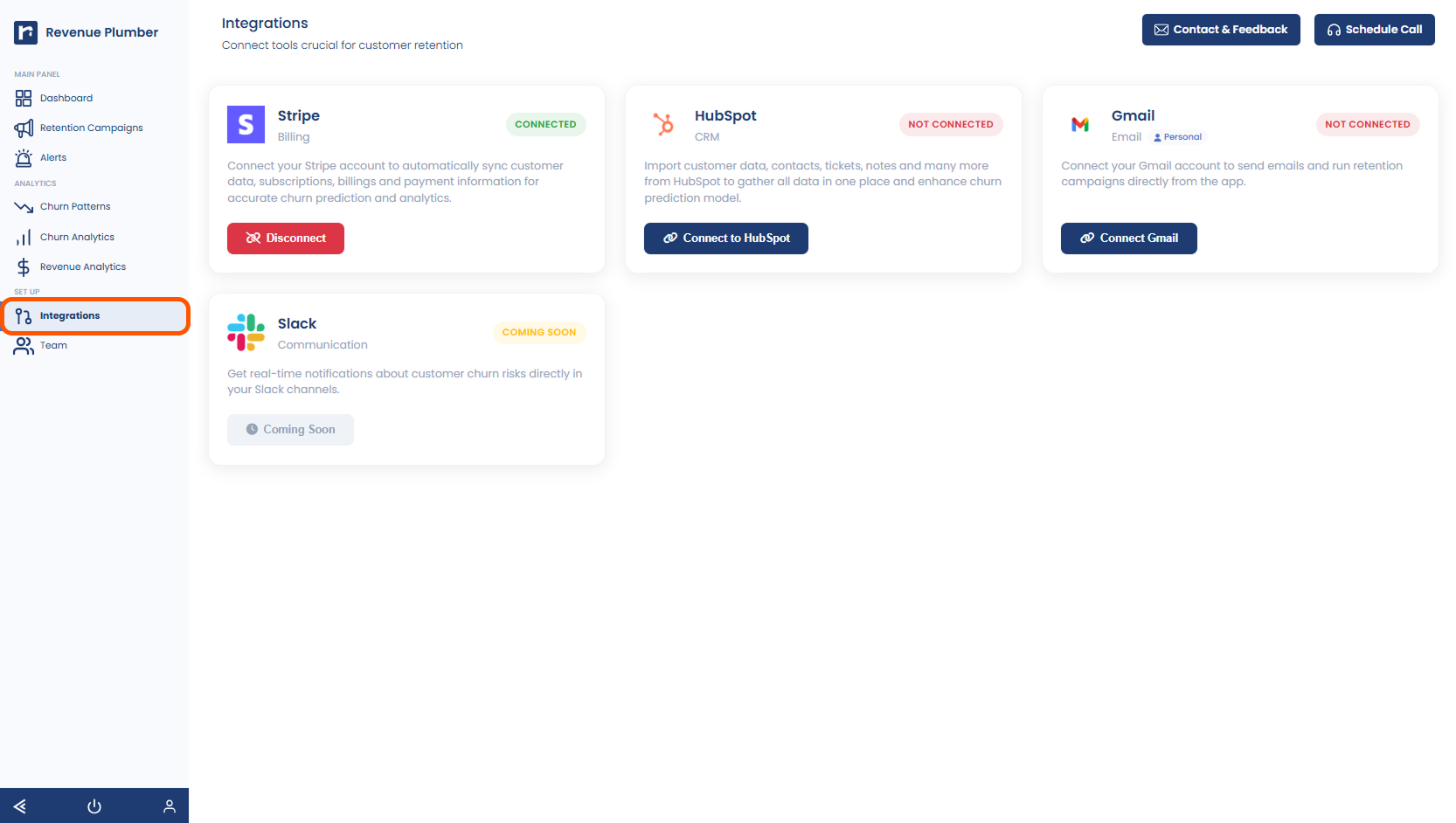
Step 1: Navigate to Integrations
Log in to your Revenue Plumber account as an Admin. Click on Integrations in the main navigation menu.
Step 2: Find HubSpot Integration
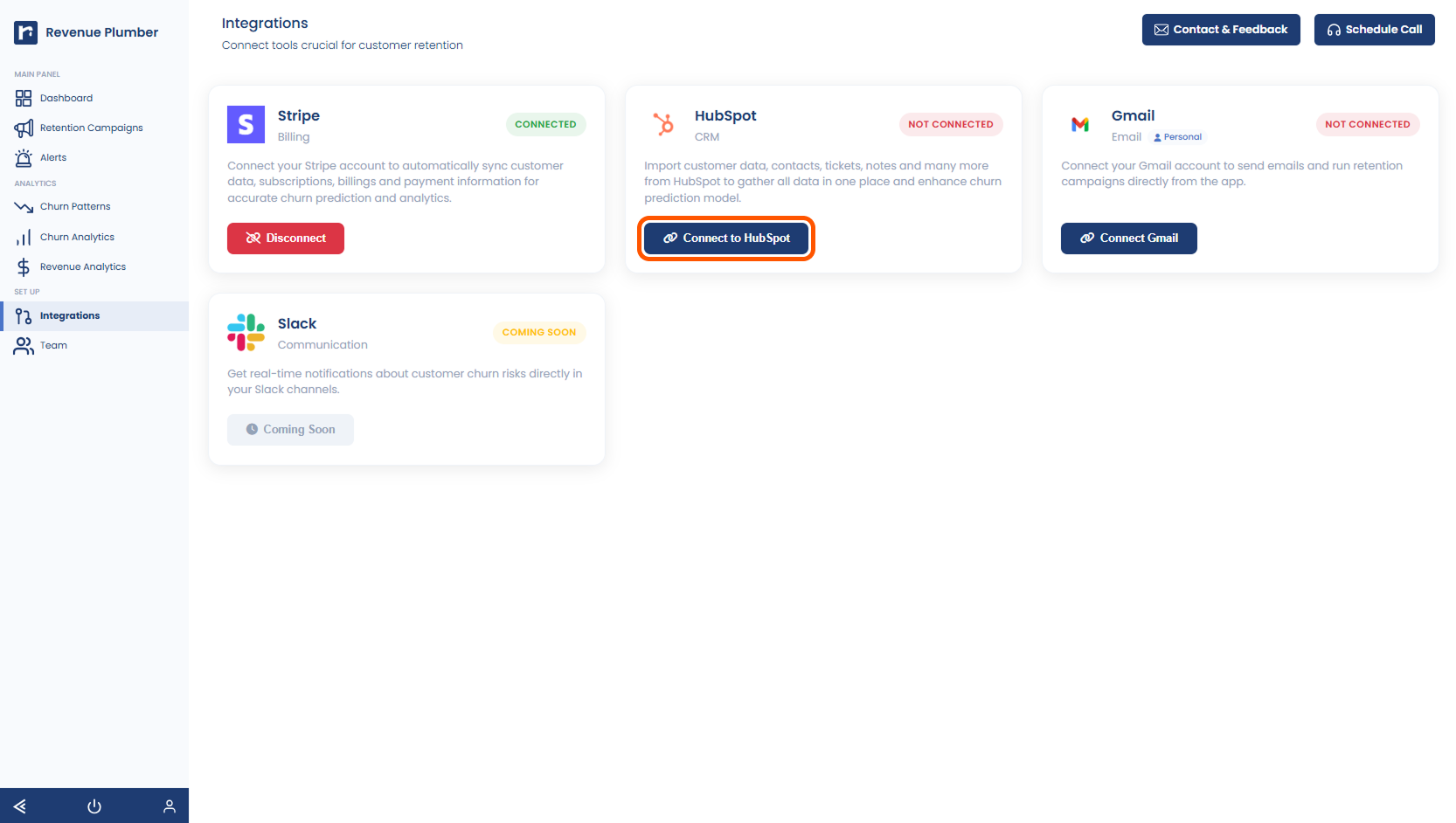
Locate the HubSpot card in your integrations list. Click the "Connect" button to begin the authorization process.
Step 3: Authorize in HubSpot
You'll be redirected to HubSpot's authorization page. Log in to your HubSpot account if prompted, then review the permissions Revenue Plumber is requesting. Click "Connect app" to authorize the integration.

Step 4: Wait for Data Sync
After authorization, you'll be redirected back to Revenue Plumber. The initial synchronization of your historical HubSpot data will begin automatically. This process typically takes 2-5 minutes depending on the amount of data in your HubSpot account.
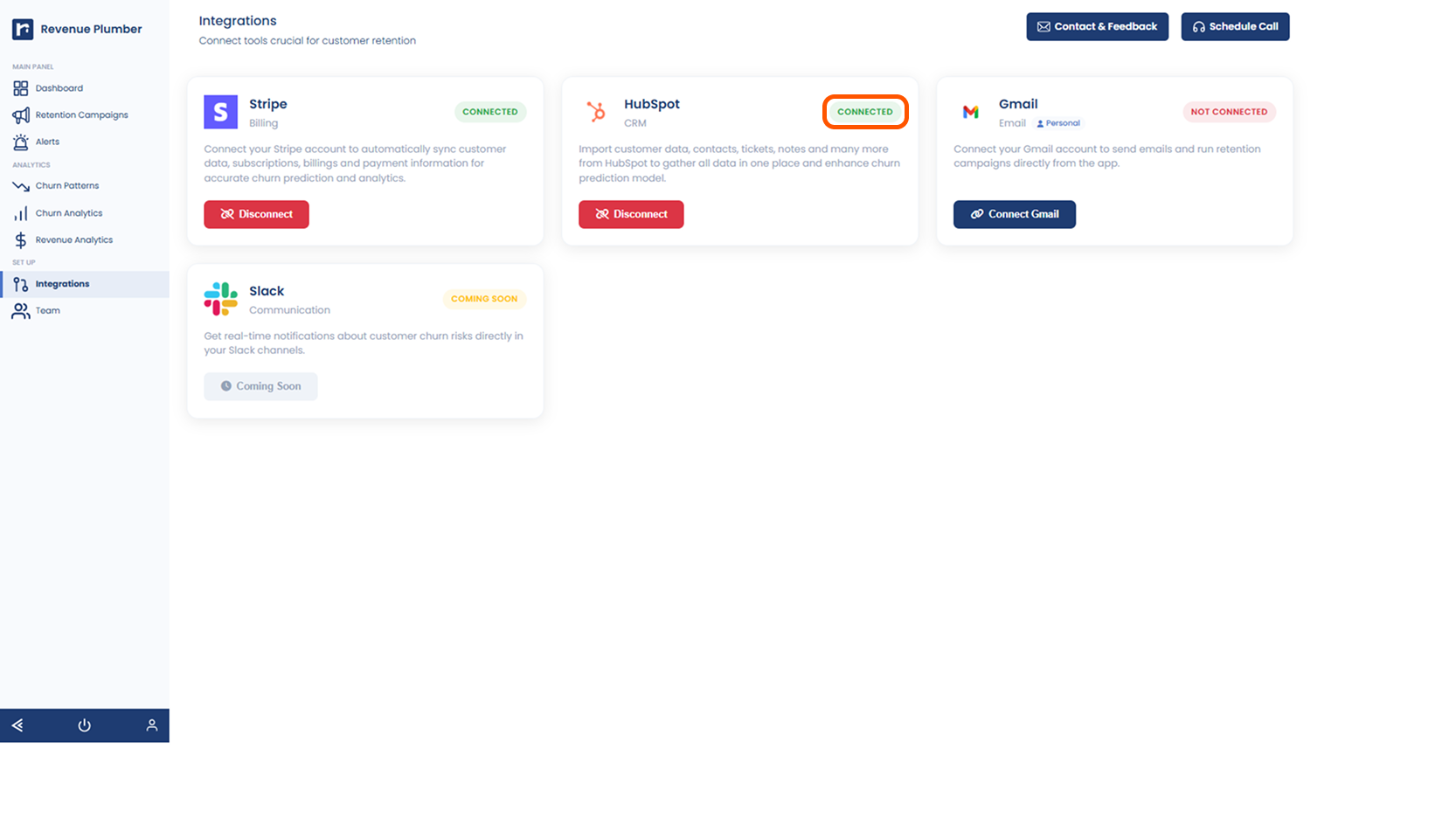
Once the sync is complete, the HubSpot integration card will show a "Connected" status. Your HubSpot data is now available in Revenue Plumber and will continue to sync automatically.
Data Synchronization
Revenue Plumber syncs data from HubSpot to enhance your customer profiles and improve churn prediction accuracy. Here's what data we pull:
| Data in Revenue Plumber | Source from HubSpot | Description |
|---|---|---|
| Customer | Companies | Revenue Plumber connects Stripe customers with HubSpot companies |
| Customer Details | Company Properties | Revenue Plumber reads all details of a customer to enhance churn probability algorithm |
| Activity | Email Activities | Revenue Plumber synchronizes all activities related to a customer |
| Conversations | Conversations | Revenue Plumber synchronizes all conversations related to a customer |
| Notes | Notes | Revenue Plumber synchronizes all notes related to a customer |
Sync Frequency
When you first connect, Revenue Plumber pulls all historical data from your HubSpot account. This typically takes 2-5 minutes. After the initial sync, data is automatically updated on a regular schedule to keep your customer profiles current.
Revenue Plumber only reads the data necessary for churn prediction. We do not modify, delete or write any data back to your HubSpot account.
Disconnect HubSpot
If you need to disconnect the HubSpot integration, you can do so at any time:
- Navigate to the Integrations section in your Revenue Plumber dashboard.
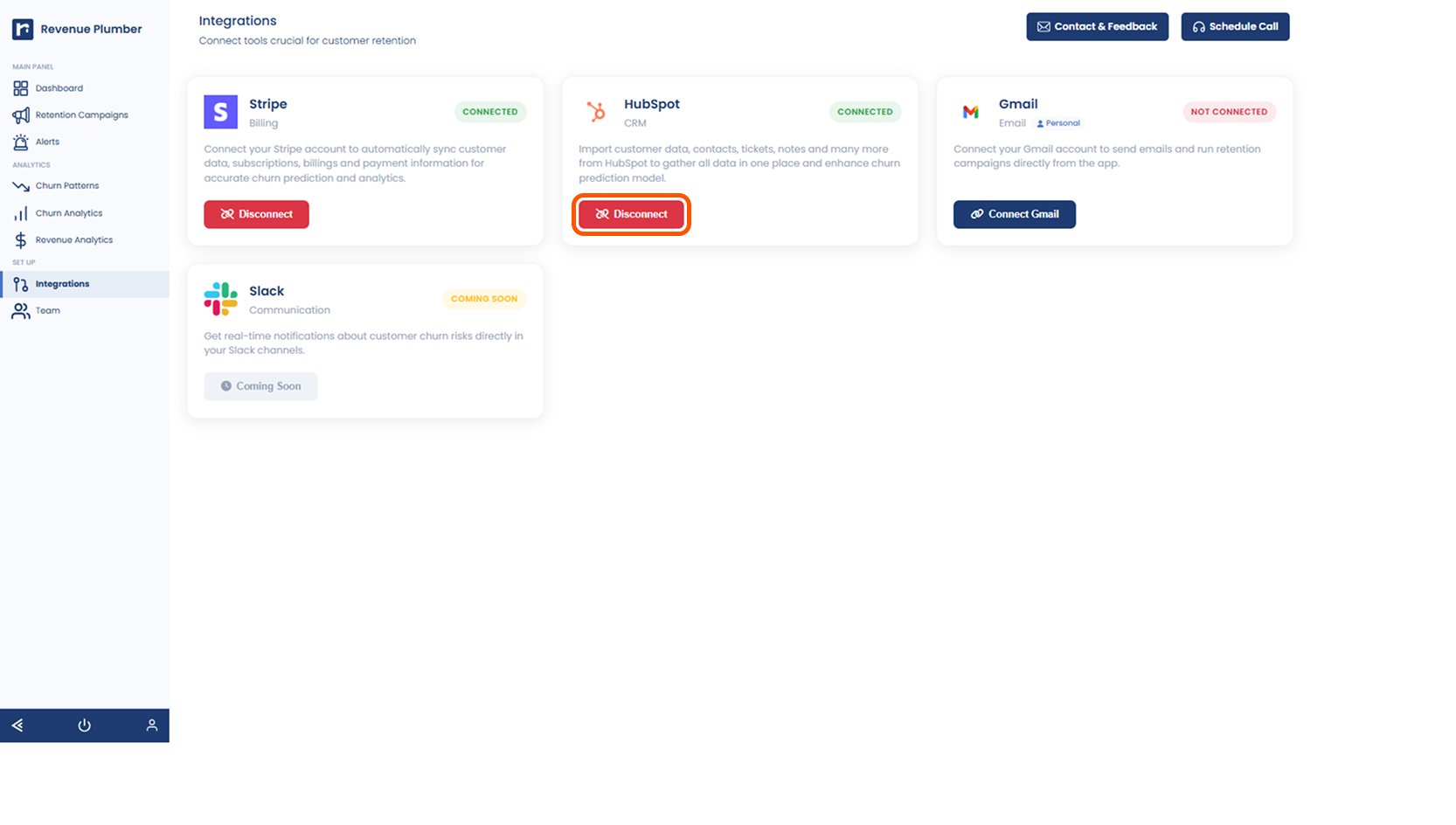
- Find the HubSpot integration card and click the "Disconnect" button.
When you disconnect:
- Data sync between Revenue Plumber and HubSpot stops immediately.
- Previously synced data remains in Revenue Plumber for historical context.
- Churn predictions will continue to work but won't have fresh HubSpot data.
- You can reconnect at any time by following the setup process again.
Troubleshooting
Authorization Failed
The connection process was interrupted or you denied permissions. Try connecting again and make sure to click "Connect app" on the HubSpot authorization screen. Ensure you have Admin permissions in HubSpot.
No HubSpot Data Showing
Make sure your Stripe integration is connected first. HubSpot data only displays for customers that exist in your Stripe account. Also, wait a few minutes for the initial sync to complete.
Sync Taking Too Long
Large HubSpot accounts with thousands of companies and activities may take up to 10 minutes for the initial sync. If it takes longer than 15 minutes, try disconnecting and reconnecting the integration.
Customer Not Matched
Revenue Plumber matches customers based on company name and email domains. Ensure the company information in HubSpot matches the customer details in Stripe.
"Connect" Button Not Working
Check if pop-ups are blocked in your browser. Disable any ad blockers temporarily. Try using a different browser or clearing your browser cache.
Need Help?
If you're still having trouble with your HubSpot integration, our support team is ready to assist. We typically respond within 2 hours during business hours.